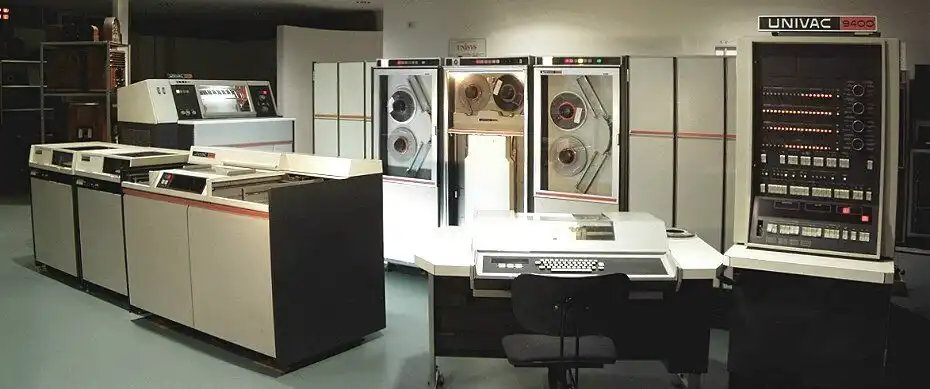
Early computers where huge machines that consisted of multiple cabinets, e.g. one cabinet for the CPU, one or more cabinets for tape drives, one cabinet for each disk drive, one cabinet for a punched card reader and one cabinet for a high speed printer. The image below is a Univac 9400 system from 1967 consisting of several cabinets.
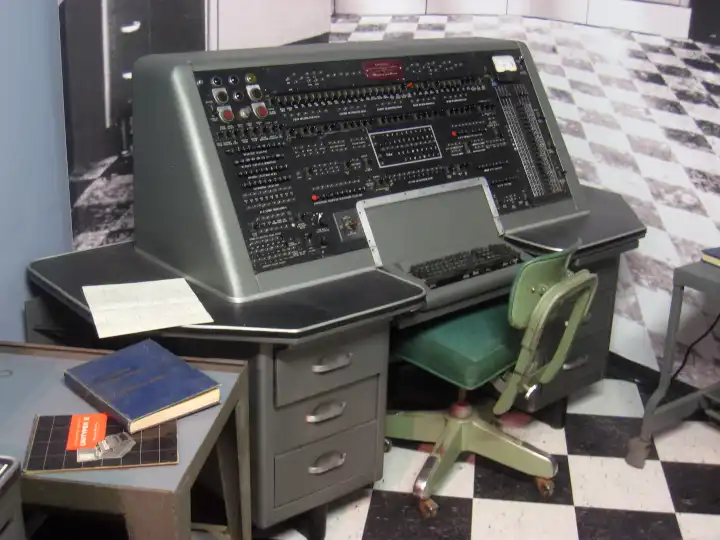
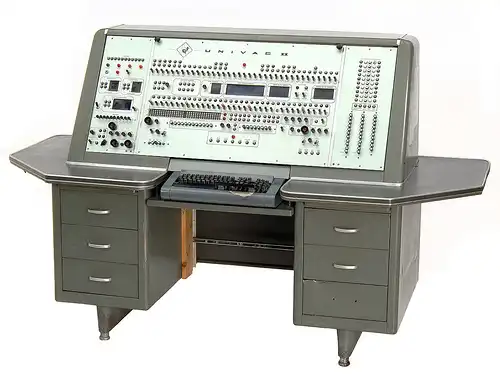
The “console” was the “control console”. In the pictures below is a “UNIVAC 1” control console and a “UNIVAC 2” control console.
UNIVAC 1 console
 UNIVAC 2 console
 #
#
Terminals
A terminal is a program that provides a textual user interface. It supports reading characters from the keyboard and displaying them on the screen.
Many years ago, these used to be integrated devices (keyboard and screen together), but nowadays terminals are simply apps. Now the terminal is a terminal emulator , a graphical application whose role is to interpret data coming from the shell and display it on screen. The shell itself provides an interface to the operating system, allowing the user to interact with its file-system, run processes and have access to basic scripting capabilities.
Teleprinters, stock tickers and terminals
In the 1830s and 1840s, machines known as teleprinters were developed. These machines could send typed messages “down the wire” to distant locations. They were basically typewriters connected to wires and tape printer: messages were typed by a sender on a keyboard, and printed at the receiving end.
Before teleprinters, telegraphy relied on morse codes. With teleprinters a family of new techniques to encode and decode messages was born, among them we remember the most important one patented in 1874 by [Emile Baudot], from whom the [baud rate] is named. His character scheme pre-dated ASCII by 89 years. In the original hardware design there were only 5 keys and the operator was required to learn key combinations but then Baudot encoding was coupled to a traditional keyboard
A common application were Stock ticker : a kind of typewriters connected to wires and tape printer, used to distributed stock prices over long distances. They were later replaced by ASCII-based teletypes. These typewriters connected to mainframes, or teleprinters were effectively the first kind of terminal.
ASCII and Telex
When ASCII arrived in 1963, it was adopted by the teletype manufacturers. Despite the invention and widespread use of the telephone, teletypes were still going strong.
Telex was a worldwide network of teletypes that allowed written messages to be sent around the globe. They were the principal means of transmitting written messages in the period following World War II up to the fax machine boom of the 1980s.
The teletype repurposed
The teletype was the perfect candidate as an input/output device. It was, after all, a device designed to allow messages to be typed, encoded, sent, received, decoded, and printed.
What did the teletype care if the device at the other end of the connection wasn’t another teletype? As long as it spoke the same encoding language and could receive and send message back, the teletype were happy. That’s how teletypes became the default means of interacting with the large mini and mainframe computers of that era.
In a nutshell
A user types at a terminal (a physical teletype). This terminal is connected through a pair of wires to a UART (Universal Asynchronous Receiver and Transmitter) on the computer. The operating system contains a UART driver which manages the physical transmission of bytes, including parity checks and flow control. In a naïve system, the UART driver would then deliver the incoming bytes directly to some application process.
In practice, the very simple setup described above wouldn’t provide critical capabilities such as :
- line editing in case of mistakes (provided by a component called Line discipline)
- Session management provided by the TTY driver
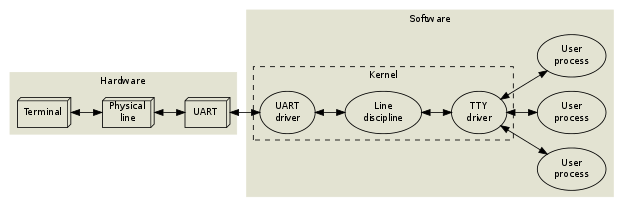
In reality, often the physical line could be a long-distance phone line and several routers would be in the middle.
 !
!
Video terminals
The video terminal provides a way for the kernel and other processes to send text output on the monitor to the user, and to receive text input from the user via the keyboard.
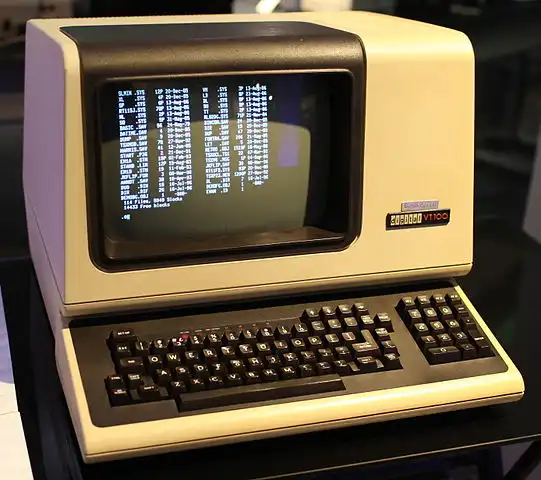
The VT100 is a video terminal, introduced in August 1978 by Digital Equipment Corporation (DEC). It was one of the first terminals to support ANSI escape codes for cursor control and other tasks, and added a number of extended codes for special features like controlling the status lights on the keyboard. This led to rapid uptake of the ANSI standard, becoming the de facto standard for terminal emulators.
Terminal in a typical desktop system
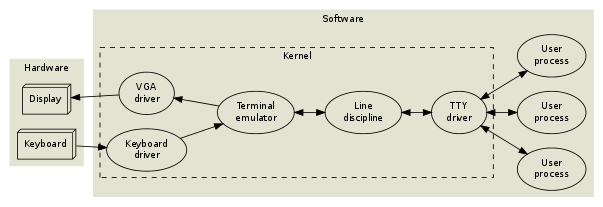 In a typical desktop system there is no UART or physical terminal but a video terminal emulated in software and rendered in a VGA display.
The virtual terminal
A virtual terminal or virtual console is a program that simulates a physical terminal. For example, both the Linux kernel and the BSD kernels support virtual terminals - terminals that are logically separate, but which access the same physical keyboard and monitor.
The virtual terminal gives the impression that several independent terminals are running concurrently. Each virtual terminal can be logged in with a different user and it can run its own shell and have its own font settings. The virtual terminals each use a device /dev/tty.
tty in Linux prints the current terminal you are using. TTY stands for Teletypewriter
## Terminal emulator

A terminal emulator is a computer program that emulates a physical terminal within some other display architecture. The purpose of the  emulator is to allow access to the command line while working in a graphical user interface, such as the [[X Window System]]. Since the shell is "expecting" to interface with a human through a terminal, and we don't use a physical terminal while in a graphical environment, we need the terminal emulator.

```sh
# Shows available terminal types in Linux
ls /lib/terminfo/*
# In OneBSD
ls /usr/share/terminfo/*
To make the console subsystem less rigid, the terminal emulation was moved into userland. To keep the session management and line discipline intact, a pseudo terminal or PTY was invented.
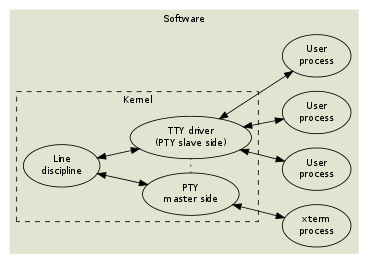
xterm
Xterm is the default terminal emulator for the X Window System, it was developed in the mid 80s and later the main line of developed shifted to the XFree86 implementation of the X Window System. Xterm is still being actively developed, works great across many different systems, and it has a variety of options
Alacritty
Alacritty is an open-source GPU accelerated terminal emulator written in Rust for Linux, BSD, macOS and Windows. Alacritty focuses on performance and simplicity.
Alacritty is configured by editing its configuration file alacritty.yml that contains documentation for all available fields. The GitHub releases page for Alaritty contains a alacritty.yml file for each release that can be used as a boilerplate.
Other terminal emulators
- Zutty - uses a parallel rendering algorithm to offload the work of drawing the terminal screen to the GPU.
- Kitty - a fast, featureful, GPU based terminal emulator.
- GNOME Terminal - default terminal for GNOME.
- konsole - default terminal for KDE.
- xfce4-terminal - default terminal for Xfce Desktop Environment.
- lxterminal - default terminal for LXDE.
- Terminator - written in Java with many novel or experimental features.
- Tilix - a GTK3 tiling terminal emulator that follows the GNOME Human Interface Guidelines.
- rxvt (acronym for our extended virtual terminal) is another terminal emulator for the X Window System.
The TERM env variable
The environment variable TERM tells applications the name of a terminal description to read from the terminfo(5) - Linux manual page) database. Each description consists of a number of named capabilities which tell applications what to send to control the terminal. For example, the cup capability contains the escape sequence used to move the cursor up.
PTS and PTY
In Linux, there is a pseudo-teletype multiplexor which handles the connections from all of the terminal window pseudo-teletypes (PTS). The multiplexor is the master, and the PTS are the slaves. The multiplexor is addressed by the kernel through the device file located at /dev/ptmx.
The shell and the terminal are connected by the pseudoterminal or pty, a bidirectional asynchronous communication channel:
- the primary side of the pty (once called master)is the terminal emulator
- the secondary (one called slave) is the shell
The tty command will print the name of the device file that your pseudo-teletype slave is using to interface to the master. tty -s is a silent version that returns a different exit code depending on when the input is coming from
Any program expecting to be connected to the terminal (such as vim or top) can be opened directly on the secondary side of the pty. The forkpty LibC library can be used to fork a new pty
PTY as files
In Linux, everything is a file, including the PTY, as we can see from an ls
ps

   PID TTY          TIME CMD
393500 pts/1    00:07:09 pty
393501 pts/2    00:00:03 fish
595419 pts/1    00:00:00 ps
We can use the /dev/pts/1 file to pipe with echo like so:
echo "Hi from new window!" > /dev/pts/1More evil stuff can be used to make the cursor invisible in other terminals sending the ANSI escape code \033[?25l (\033[?25h to bring it back). These are good reasons not to be logged with the same user on the same Linux server. One can even harass everyone and hide the cursor like so:
for i in $(ls /dev/pts | grep -v ptmx); do echo -en "\033[?25l" > /dev/pts/$i; doneThe WHO command
The who command can be used to list which users are connected to which terminal like so
ANSI escape codes
In addition to the basic character-oriented input and output, terminal support ANSI escape code - Wikipedia to signal cursor location, color, font styling and other options. For example, htop uses escape codes to achieve is look and feel
The ^[ character is one of the possible representation of the Escape character - Wikipedia which is used to indicate the following characters are a control sequence rather than plain text. It is represented in octal with \033, so for example the following echo:
echo "I am some \033[38;5;9mred text!"
produces effectively red text. ANSI escape codes have many different types, but generally fall under CSI (Control Sequence Introducers), OSC (Operating System Commands) or direct escape sequences.
ANSI escape codes are powerful, for example:
[(Bis achange charset to ASCII^[C0means that all future text sent to the terminal will be interpreted against that setecho -e "\033(0lqqqk\nx x\nmqqqj"draws a box
Drawing is possible thanks to a special character set that replaces characters on the keyboard with symbols, for example the char { produces the pi symbol . (0 activates this character set.
SIGWINCH
SIGWINCH is a special Signal that is sent to a terminal every time a process controlling terminal is resized. Often responsive terminal applications use ioctl system call to retrieve the current size of the terminal, and re-render their content.
Terminal raw mode
The input of a process STDIN is line-buffered by the pty usually. However, this behavior is not always desirable and we might want to set the user terminal in “raw mode” using termios system calls.
- STDIN is read character-by-character
- Echo is disabled
- Special processing of input is disabled (eg. Ctrl-c will no longer send a SIGINT to the terminal)
Terminals multiplexer
Screen
The original terminal multiplexer, pretty basic, nobody uses anymore. It’s not maintained
Tmux
Flexible and rich, supports three level of grouping:
- sessions
- windows (like a tab in a browser)
- panes
Tip
You can use
trigger + zto minimize a pane temporarily. Plugins such astmux-continuuum, which saves the sessions every 15 minutes, andtmux-resurrectwhich allows you to save and restore session explicitly, can also be very helpful
Other multiplexer
- Tmuxinator helps to manage tmux sessions
- Byobu wraps screen or tmux in certain Debian distros
- Zellij is a terminal workspace that includes plug-in system and a layout engine
- dvtm offers features
Shells
A shell is a program that implements a read-eval-print-loop (REPL) inside the terminal. It acts as a command interpreter and typically offers:
- input and output handling via streams
- variable
- built-in commands
- handle command execution and status
- support interactive usage and scripted usage
The shell is formally defined in sh.
- Originally, we had the Thompson shell sh, developed in the late sixties and named after the author
- Later we had the
shBourne shell, developed by Stephen Bourne at Bell Labs and gained popularity through The Unix Programming Environment by Brian Kernighan and [[Rob Pike - Nowadays it’s usually replaced with the bash shell, short for “Bourne Again Shell”, the default from Version 7 of Unix.
Other implementations of sh exists:
- the
cshor C-Shell that provides a more familiar syntax for C programmer tcshwhich is an extension ofcshwith command-line completion and editing, the default shell for FREE BSD- The Korn shell
ksh, a middle road between Bourne Shell and C Shell, used as a basis for POSIX
Why it is called the shell?
It is named “a shell” because it is the outermost layer around the operating system.
It knows nothing about displaying characters on the monitor or about handling input keystroke codes from the keyboard - that is up to the hardware and software that is implementing the terminal. That is why we interact with the shell using the terminal, however, direct operation via serial hardware connections or Secure Shell are common for server systems.
User shell settings
The shell choice of each user is stored in the user profile locally in the /etc/passwd file or in a distributed configuration system such as NIS or LDAP. However, the user may execute any other available shell interactively.
Streams
The shell equip every process with three default file descriptors:
- `stdin (FD0)
stdout(FD1)stderr(FD2)
They are connected by default to your keyboard and screen but you can redirect them using $FD> for example 2> means redirect the stderr stream. To redirect both stdout and stderr one can use &>. To get rid, you can redirect them to /dev/null
Shell special characters
- Ampersand (
&): Execute the command in background - Backslash (
\): Continue the command on next line for readability of long commands - Pipe (
|): Connects thestdoutof a process tostdinof the next process
Shell Variables
There are really two types of variables:
- shell variables that we set with
set - environment variables that are set with
export
Exit status
The exit status can be queried using echo $? however this is the last exit status. If are using pipes, use instead $PIPESTATUS
Built-in commands
Some shells come with built-ins, such as ls. In some linux distros these commands are not built-in but binaries in /usr/bin. You can use type ls or which ls to check if it is a built-in or a binary. You should use the command -v since it’s posix compliant instead of which
Tip
There are modern replacements for many shells built-in, for example you can use
exainstead oflsand get a nicer-tree based layout,batinstead ofcatto get syntax highlighting andrginstead ofgrepwhich doesn’t require to be used withfindand it’s much faster. People also often usejqinstead ofawkfor json values
Job control
Shells support background and foreground job. With & we run something in background, with fg we bring it to the foreground. We can also use ^Z to suspend a program and then bg to restart it in background. The jobs command list the background processes attached to the current terminal (i.e. in the current terminal job queue)
Most processes that you start on a Linux machine will run in the foreground. The command will begin execution, blocking use of the shell for the duration of the process. The process may allow user interaction or may just run through a procedure and then exit.
SIGINT
Linux terminals are usually ocnfigured to send the SIGINT (Signal Interrupt) to the current foreground process when the user presses CTRL +C.
SIGTSTP
When you need to access the terminal without exiting the current process, you can use “Signal Terminal Stop” or SIGTSTP, usually represented by the signal number 20. Most terminals have it connected to CTRL + Z
SIGHUP
Processes are tied to the terminal instance that started. When a terminal closes, it sends a SIGHUP signal to all the processes tied to the terminal, signaling those processes to terminate because the controlling terminal will be unavailable.
nohup makes processes immune to the SIGHUP signal. The process output will typically written in the current working directory in nohup.out if the directory is writeable or to the home folder elsewhere. This job won’t be available using the jobs command since it is not attached to the current terminal job queue.
The disown command can be used to remove the job completely from the job queue of a terminal, giving up all job control mechanisms. Often it is preferrable to use disown -h PID that mark the process to ignore SIGHUP signals, but otherwise continue as a regular job. In bash shell, one can use shopt -s huponexit to set the huponexit option that disable sending the SIGHUP signal
These days Terminal multiplexing is generally preferred to job controls
- linux Read How To Use Bash’s Job Control to Manage Foreground and Background Processes | DigitalOcean ✅ 2024-09-02
Here documents
Here documents are a way to pass a multi-line string to an interactive program or command such as cat
COMMAND <<InputComesFromHERE
...
...
...
InputComesFromHERE
The delimiter is arbitrary (commonly EOF or END). Prefix the delimiter with - to strip leading tabs (not spaces):
cat <<-EOF
	This line has a leading tab that will be stripped
EOF
By default, variable expansion happens inside the body. Quoting the delimiter prevents it:
cat <<'EOF'
$HOME will NOT be expanded here
EOF
Here strings
A here string (<<<) is a compact variant that feeds a single string directly to a command’s stdin, without creating a subshell or a temporary file:
COMMAND <<< "string"# Instead of: echo "hello world" | grep "world"
grep "world" <<< "hello world"
# Useful for reading into variables without a subshell
read first last <<< "John Doe"
echo "$first" # John
# Works with bc for quick arithmetic
bc <<< "2^10" # 1024
<<<vsecho | cmd
echo "x" | cmdrunscmdin a subshell, so variable assignments inside won’t persist to the parent shell.cmd <<< "x"runscmdin the current shell, so assignments survive.
Subshells
In general, running a command requires creating a new process via
forkand replacing its content viaexec. As theforkbefore theexeccreate a new shell spawned from the current shell, this is called a subshell.
Process substitution
Process substitution lets you use the output of a command as if it were a file, using <(cmd) (read) or >(cmd) (write). The shell creates a named pipe (FIFO) under /dev/fd/ and passes its path to the outer command.
# Compare output of two commands without temp files
diff <(sort file1.txt) <(sort file2.txt)

# Feed two streams into a command that expects two file arguments
comm <(sort list_a.txt) <(sort list_b.txt)

# Write side: tee to two different processors simultaneously
tee >(gzip > out.gz) >(wc -l) < bigfile.txt
Process substitution vs pipes
A pipe (
|) is linear — one command feeds the next. Process substitution is more flexible: you can feed multiple independent subprocesses as if they were files, and the outer command controls when it reads each one. Pipes and process substitution use separate subshells to run the programs, so there is no difference from the execution mode perspective, only fhe flexibility
Modern shells
Bash is a shell from the late 1980s, and this is why it’s not the default on Mac.
Fish shell
It has these notable differences with bash:
- No explicit history management
- Many autosuggestions out of the box
- Some syntax to set variables, and environment variables
- You can launch
fish_configwhich will open a browser to configure (themes, etc) abbrfor aliases and a different syntax for functions
Z-shell
It is a bourne-like shell with powerful completion, rich theming support, and full compatibility with Bash. Using Oh My Zsh it is possible to achieve similar look-and-feel of Fish shell . It has five config files
- $ZDOTDIR/.zshenv sourced on all invocations, including the ones without terminal
- $ZDOTDIR/.zprofile sourced before .zshrc
- $ZDOTDIR/.zshrc sourced in interactive shells
- $ZDOTDIR/.zlogin sourced in login shells
- $ZDOTDIR/.zlogout sourced when the shell exits
Othrs:
- Oil shell for Python and Javascript users
- Murex: a Posix shell that has typed pipelines, integrated testing framework, event driven programming
- Nushell: an experimental shell featuring powerful tabular output and query language. See Introduction | Nushell
- PowerShell: a cross platform shell that started off as a fork of Windows Powershell. It’s not Posix compliant
Shell scripting best practices
Using shmft for formatting the script and shellcheck for linting are useful practices to ensure the scripts adhere to best practices. Additionally, using a template like the following:
#!/usr/bin/env bash 1
# Fails as soon as one command fails
set -o errexit 2
# Treat unset variable as errors
set -o nounset 3
# If one part of the pipeline fail, the entire pipeline fails
set -o pipefail 4
ensures the script is portable and fails fast. Additionally bats (Bash Automated Testing System) allows to create test cases for Bash